Showing posts with label Android Contacts. Show all posts

Sunday, November 27, 2011

Contacts App For Android - With Themes, Backup & Recovery, Sync And Contact Management Features

This is one of the best and free Contacts Apps for your Android mobile phone. It comes with very cool user interface and plenty of useful features that you may be looking for in Android Contacts App. You can change the default theme of this app and alter the the look & feel so as to match with your persona. It comes with fancy 3D transition effects for swiping screens from one to another.

This is second Android Contacts App that is presented here. If you have not read about the first one then you can read it at : Android Contacts App - With Manage, Search, Sort, Sync, Groups, Speed Dial, Ringtone, Events and More Features

Best Apps For Android Go Contacts Ex
Android Contacts App - Go Contacts Ex : This cool android app comes with many contact management features including contacts backup and recovery.  It comes with very cool Dialpad for dialing numbers form your contact list and your call history. Once you try this app then you may not go back to older contacts app you were using on your Android mobile phone.

Android Contacts App - Contacts List : When you install this app on your Android phone and launch it first time them you would see the contacts list screen. On this screen, pressing the menu button of your Android phone would display the menus of this app as shown in screenshot below.

Android Contacts App - Menu
As shown in above screenshot there are menu useful features which can be accessed through these menus. Apart from these menus you can also long press the item from contacts list to display context menu with quick and handy features like "Call", "Edit before call", "Send SMS", "Send contact by SMS", "Add to favorites", "View Contact", "Edit Contact" and "Delete Contact".

Notice the search box at the top of the screen just below the title bar. You can type here the contact name that you want to search. It starts showing you the matching contacts as soon as you start typing in this search box.

Android Contacts App - Creating New Contact : You can either tap the "+" button at top right hand corner of the screen shown above or tap the "New Contact" menu shown in screenshot above. This would first prompt you to select from the list of accounts including "Phone". Select "Phone" to create phone contact and it would display the new contact screen.

Android Contacts App - New Contact
You can enter all contact information for your new contact using this screen. Tap the photo icon to take a snap or select the photo from android Gallery.

Tap the down arrow button at the right of "Given name" text box to see and make other contact entries related to name.

Tap "+" and "-" icons at the right hand side to add or remove additional phone entries.

Tap the drop down button at the left of phone or email text box  to select the type of phone number or email id.

Other information that you can enter here for the contact being created is "Postal address", "Organisation", "Groups" and "Ringtones". Once all the required information of the contact is entered then tap "Done" to create that contact.

Android Contacts App - Themes : Tap "Themes" menu and it displays the themes screen as shown below.

Android Contacts App - Themes
There are two tabs on this screen. "My Themes" tab displays the themes which are already downloaded and available. "More Themes" tab displays additional themes which can be downloaded.

Tap the theme you want to apply from the list of themes from  "My Themes" tab. This would apply the new theme to change the look & feel accordingly.

Android Contacts App - Contacts Backup & Recovery, Export & Import :   This app comes with a very handy and useful feature where you can take the backup of your contacts. You can restore contacts from backup when required. Especially when contacts get deleted for some reason or when phone is lost. Tap the "Im - Export" menu to launch the "Import - Export" dialog box as shown in screenshot below.

Android Contacts App - Import/Export contacts
Select "Export to SD card" for taking the backup of the contacts and it would prompt you for confirmation with the name of the backup file. On confirmation, contacts are backed up to the SD card.

For restoring the contacts from backup file tap "Import from SD card" option and select the backup file from your SD card. This would restore the contacts from that backup file.

Android Contacts App - Contact Accounts and Sync : Tap "Contact Acc..." menu to display the "Contact Account" screen as shown below.

Android Contacts App - Contacts Account
Using this screen you can choose accounts from which contacts should be displayed in this app. You can choose to display and sync the contacts from "Phone", "Google", "SIM", "Facebook" and "Twitter". Mark the check box "Show contacts with phone numbers only" to hide the contacts which do not have phone number.

Android Contacts App - Dialpad : This app has a toolbar at the bottom of the screen. The left button on this toolbar is "Dialpad". Tap this button to display the Dialpad screen of this app.

Android Contacts App - Dialpad
You can see the call history on this screen. Typing the number directly starts filtering the contacts and matching numbers are displayed. Once the number is entered then tap "Call" button to dial that number.

This app comes with cool 3D transition effects. Swipe the app screen horizontally and you would be able to switch from once screen to another with 3D cube transition effect.

Download this app and it's themes from Android market or app store of your choice and start enjoying this cool app from today.

As mentioned earlier in this post, this is second Android Contacts App that is presented. Read about the first app at : Android Contacts App - With Manage, Search, Sort, Sync, Groups, Speed Dial, Ringtone, Events and More Features

If you like this app then you may like to check few about few more wonderful Android apps here by going to popular apps, archive or home. Bookmark this url for future reference and keep coming to read about more such coolest and best apps for Android.

Saturday, October 15, 2011

Android Yahoo Mail App - Setup And Sync Emails With Official Yahoo eMail App For Google Android

If you are a person who likes yahoo email and want to stay connected with your network on the move then this Android Yahoo mail app is for you. Setup this official android yahoo email app on your mobile phone once and keep in sync with your yahoo contacts and emails wherever you go. All your yahoo emails would be just finger touch away anytime and anywhere.

Best_Apps_For_Android_Yahoo_Mail
Android Yahoo Mail App : The color scheme of this app is that of yahoo email and is familiar to you. It is feature packed and you would be able to perform almost all email operations that you perform using normal desktop yahoo mails. You can compose, read, reply, search and delete emails. It is simple and easy to use.

Android Yahoo Mail Setup : When you install this app and launch it first time then it would prompt you to  setup it by adding your yahoo id.

Android Yahoo Mail Setup
If you already have yahoo email account then just enter your yahoo email ID, password and tap "Add Account" button. When you tap "Add Account" button then it takes you to next screen "Sync Contacts". Here you can decide if you want to add your yahoo contacts to your phone book and sync the contacts. Tap "Done" button at the right hand top corner of the screen to move ahead from "Sync Contacts" screen. This setup you need to perform only first time. Android yahoo mail remembers your account information when you start the app next time.

If you do not have yahoo email account then tap "Get a new Yahoo! ID" button for creating a new yahoo account. Follow the steps to create your new yahoo email account.

Android Yahoo Mail Folders : When you setup your app first time then it would take you to the folder screen.

Android Yahoo Mail Folders
As you can see in screenshot above, you can access all your yahoo mail folders. Scroll down this screen to see remaining smart folders and other folders if you have created. The number next to the Inbox is indicating the number of unread emails in the Inbox folder. You can tap the folder you want to see the list of emails in that folder.

Android Yahoo Mail Inbox : When you tap the inbox item from folder screen then you would see the list of emails in your inbox.

Android Yahoo Mail Inbox
Screenshot above is showing the list of emails in inbox. At right hand top corner of the screen is "Edit" button. You can tap this button to switch to edit mode where you can select multiple emails and move or delete them.

Press the menu button of your phone to display the app menu as shown in above screenshot. Using this app menu you can compose an email, refresh list of emails, start yahoo messenger, search emails or change the android yahoo mail settings.

Composing Android Yahoo Mail : You can tap "Compose" menu to start composing new email. It would display the compose screen as shown below.

Composing Android Yahoo Mail
Type the recipient email IDs in "TO:", "Cc:" or "Bcc:" field. Alternatively, you can tap the button with plus sign icon at right of the field to select the email ids from your contact list. Tapping the message body of the email displays a toolbar at bottom of the screen, as shown in above screenshot .

First icon from left on the toolbar allows you to change the text style, size and color. Second icon allows you to insert imoticons in message. Third icon allows you to choose the files as attachments. Forth and last icon allows you to select an existing photo, take a new photo or record a new video for attaching to an email.

Once the message is prepared then tap send button at the right hand top corner of the screen to send that message.

Android Yahoo Mail Search : When you tap "Search" menu of the app then you would see a search screen.

Android Yahoo Mail Search
Type the text that you would like to search for in your yahoo emails. Filter the search by using the criteria provided by two drop down boxes. The first drop down box allows you to select from "Entire Message", "From", "To" or "Subject". Second drop down box allows you to select from "Emails", "Photos", or "Attachments"

After entering the search text and selecting the filter criteria, tap the button at the right hand top corner of the screen, with magnification glass icon on it. This would display the list of emails matching your search criteria.

Android Yahoo Mail Reader : From the list of emails within Inbox or any other folder tap the email that you would like to read and it would be displayed in email reader screen of Android Yahoo mail.

Android Yahoo Mail Reader
At left hand top corner of the screen is displayed a button with folder name from where you came to this screen. You can tap this button to go back to that folder. The title of this screen shows the serial number of this email and total number of emails in the folder. At the right hand top side of the screen are two arrows which you can tap to navigate to next or previous email message in the folder.

When you press the menu button of your Android phone then app menu is displayed as shown in screenshot above. You can perform operations like "Reply", "Reply All", "Forward", "Delete" and "Mark as Unread" using the menu items. "More" menu provides you additional menus to perform few more email operations.

You can download and install Android Yahoo Mail app from Android Market or App Store of your choice. If you like this app then you may would like to read about few more wonderful and exciting apps here. Bookmark the url and keep coming back to find and read about more such useful, coolest and best apps for Android.

Saturday, August 20, 2011

Android Messenger - For Facebook, MSN, Yahoo, Google Talk, Skype, AOL And More

This Android live messenger is one stop instant messaging app for Skype, MSN (Live Messenger), Facebook, Google Talk, Yahoo, ICQ, AOL / AIM, VKontakte, Yandex IM, Jabber and Myspace. With this app installed on your Android phone, you can quickly connect to all your different messenger accounts in one go. You can see all your online and offline contacts in one single screen and chat with all live contacts using common interface.

Best Apps For Android Messenger IM Plus
IM+ : This is one of the best messenger apps for Android. It has all the wonderful features which you would like to have in messenger app. It has very useful features like custom message templates, emoticons and custom messenger status. It connects to various messenger accounts very fast and you can experience the instant messaging at lightening speed.

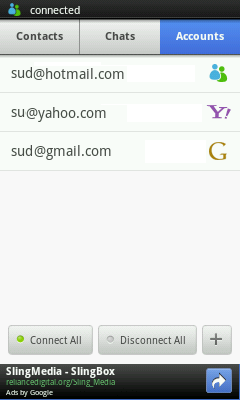
Android Messenger Accounts : When you launch this Android IM+ app for the first time then go to Accounts tab to set your messenger accounts.

Android Messenger - Accounts
As shown in screenshot above, you can see all the accounts here that you have added to your messenger app.    It displays your account id and small icons at right of each account id to indicate what type of messenger account it is. Above screenshot is displaying three accounts, MSN, Yahoo and Google Talk. You can tap the individual account id to connect to that account or simply tap "Connect All" button to connect all the accounts you have added. Similarly you can tap the already connected account name to disconnect it or you can simply tap "Disconnect All" button to disconnect all the accounts you have connected.

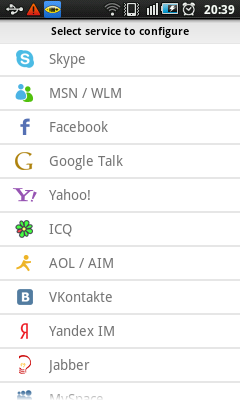
Add Messenger Account : You can either tap the button with "+" (plus) sign shown in screenshot above or can press the menu button of your phone and tap "Add Account" menu, to add new messenger account to this app.

Android Messenger - Add Account
You will see the list of messenger services that are supported by this instant messenger app. Tap one of the messenger service and follow the instructions on the screen to add your account for that service. As you can see in screenshot above, it supports Skype, MSN or Windows Live Messenger (WLM) , Facebook, Google Talk, Yahoo, ICQ, AOL / AIM, VKontakte, Yandex IM, Jabber and Myspace messenger services. Add as many accounts as you have. You have to do this only first time and once you perform account configuration then connecting to those services is just one button tap.

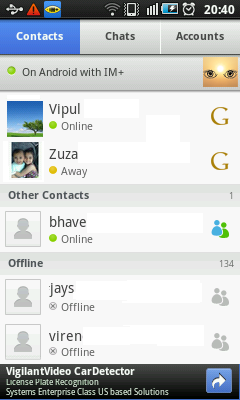
Android Messenger Contacts : Once you connect to your configured messenger services then you are automatically switched to contacts screen. You can also tap "Contacts" tab from accounts screen whenever you would like to see the contacts screen.

Android Messenger - Contacts
Here you can see all your contacts from different messenger services at one single screen. You can see the name of the contacts, their status and icon at the right indicating their messenger service. You can see that just below the tab bar is a messenger status bar. Status bar in screenshot above has a text "On Android with IM+". This is your current messenger status. You can tap the status bar to change your messenger status to predefined status from "Online", "Away", "Do Not Disturb", "I am here", "Invisible", "Offline" or "On Android with IM+". You can edit the predefined status messages or add new one to suit your need.

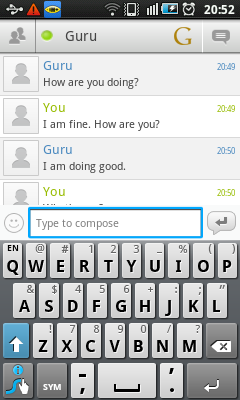
Android Messenger Live Chat : You can tap any of the contacts from your contact list to start chatting with them.

Android Messenger - Live Chat
You can start instant messaging by typing the message you want and tapping the small enter key button at right hand side of the message text box. If you tap the smiley icon at left hand side of the message text box then it displays a dialog with different emoticons which you can use in chatting to express your emotions. Your current conversation is displayed in this screen with time stamp at right of each message.

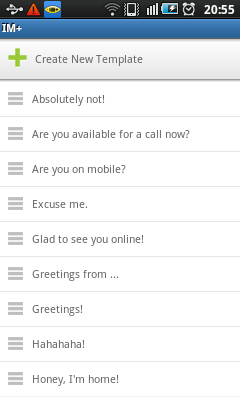
Instant Message Templates : When you are at live chatting screen then you can press the menu button of your Android phone to display the menu. From this menu tap the "Templates" menu to display the list of message templates.

Android Messenger - Message Templates
There are many predefined messages templates in the list which are suitable for different occasions. These message templates can be really time savers. You can also create your custom message templates by tapping "Create New Template" button. This would allow you to add new message templates which you use very frequently with your friends and relatives.

You can install this wonderful and cool Android live messenger on your phone from Android market or app store of your choice. If you enjoyed reading about this app then you may would like to check out few more apps from popular posts section. Keep coming back to read about more such exciting and best apps for Android.
Saturday, August 13, 2011

Android Contacts App - With Manage, Search, Sort, Sync, Groups, Speed Dial, Ringtone, Events and More Features

This is one of the best android contact managers you could find on Android market. This Android contact app comes with wonderful features like search contacts by name or number, sort contacts by last name or other parameters, sync android contacts with Google Gmail, send SMS or emails to groups, speed dial with single key press, set different ringtones to group or individual contacts, create event reminders for contacts and many more.

This is the first Android Contacts App that is presented here. If you have not read about second app then you  can read about it at : Contacts App For Android - With Themes, Backup & Recovery, Sync And Contact Management Features

DW Contacts Android App
DW Contacts : As mentioned earlier this is one of the feature rich and best Android contacts apps. User interface of this app is very crisp and user friendly. You can choose themes from Black or Bright and can customize colors, fonts and many aspects of the app to match your taste. It comes with many powerful features like group call filter, multilingual support, multi select operations and much more. It is an excellent replacement for stock dialer and contacts management application of your Android phone.

Android Contact List : When you first launch this app then you may see a pop up with recent changes to app. Once you dismiss that pop up you would see the contact list screen.

Android Contacts List
Icon highlighted by red color on the toolbar at the bottom of the screen indicates what you are currently working with. In above screenshot it is contacts list.

You can tap the phone icon at the right of each contact to dial the number. You can decide which quick icons you want to display next to contact by selecting it from app settings. The available choices are phone, SMS and email. Small icon at left to phone icon indicates if contact is from your phone, SIM card, Google, Twitter, Exchange or any other source.

Sort Android Contacts : The magnifying glass icon at right top corner of the screen is search icon. Icon immediate left to search icons is sort icon. When you can tap sort icon, it displays the Sort List By dialog as shown in screenshot below.

Android Contacts Sort
Here you can choose the parameter of contact by which you want to sort all contacts in list. You can sort Android contacts by last name (Lastname), First name (Firstname), Nick name (Nickname), Recent Contacted, Frequently Contacted or System Default.

Android Search Contacts : As explained earlier, the magnifying glass icon at right top corner of the screen is search icon. You can tap this icon to display the search text box. You can type the required search text in text box and perform the search to find the contact you are looking for. Apart from the search box, there are two more ways to search for the contact you are looking for.

When you scroll the contact list you would see small transparent scroll boxes with up and down arrows, appearing at both sides of the contact list. Drag these scroll boxes up or down vertically and you would see alphabets indicating where you are in contact list.

One more search option is provided on contacts dialer screen which is explained next.

Android Contacts Dialer : When you tap the phone button, which is the left most button on toolbar then you can see the phone dialer screen as shown in screenshot below.

Android Contacts Dialer
When you start typing numbers on phone dialer it is automatically searched for matching contacts and filtered contacts are displayed above. The matching contacts are searched in call log as well as your contacts list. Once you see the required contact in filtered list then you can tap the phone icon next to it to dial.

You can switch the keyboard from number to alphabet to search contacts by first or last name instead of their phone number.

Android Contact Groups : Tap the groups icon on toolbar to display the contact group screen as shown below.

Android Contacts Groups
You can see various contact groups in this screen. You can create a new group by pressing menu key of your phone and tapping “New group” menu.

When you long press any of the groups then you would see the popup dialog with actions which you can perform on groups. You can choose from, “Send SMS/MMS to group”, “Send email to group”, “Edit group”, “Delete group”, “Add contacts to group”, “Remove contacts from group”, “Set ringtone for group” and “Create shortcut to home”.

Add, Delete and Duplicate Android Contacts : You can press the menu button of your Android phone to display app menu as shown in screenshot below.

Android Contacts Menu
Tap the “New contact” menu to add new android contact to contact list. You can choose to save contact to Phone, SIM or any of your Google Gmail accounts. If you create new contacts for Gmail then you can sync android with Google Gmail contacts.

When you long press any of the contact in list then you would see popup dialog with various options. You can choose from “Call”, “Edit number before calling”, “Create appointment”, “View contact”, “Edit contact”, “Send SMS/MMS message”, “Share contact” and “More”.

If you tap “More” then you would see more options – “Copy to clipboard”, “Add contact to favorites”, “Edit event for contact”, “Delete contact”, “Duplicate contact”, “Set group for contact”, “Set ringtone for contact” and “Create shortcut to home”

You may have noticed that there are two ways to set Android contact ringtones. You can either set ringtone to individual contact by long pressing it in contact list or you can set ringtone to group of contacts by long pressing group name on groups screen.

Android Phone Contacts Toolbox : When you tap toolbox icon on toolbar of the app then you will see the toolbox screen as shown in screenshot below.

Android Contacts Toolbox
As you can see in the screenshot, there are features like Phone, Favorites, Contacts, Groups, Organizations, Tittles, Events, Search, SMS, Call log, Call Filter and Toolbox. As the name suggest some of these features are exactly same as described earlier. It is just one more way to access the same feature.

Call filter is one interesting feature where you can define which calls should be blocked and when. You can select the day and time range to block certain calls.

Events allow you to see all the events like birthday and anniversary which are associated with contacts.

You can download this Android contact app from market or app store of your choice and start enjoying it.

As mentioned earlier in this post, this app is the first Android Contacts App that is presented here and you can read about second app : Contacts App For Android - With Themes, Backup & Recovery, Sync And Contact Management Features

If you like this app then you may like to check few more apps from popular sections at the right. Bookmark this URL and keep visiting us to find more exciting, coolest and best apps for Android.