In this post I am going to talk about another music and Android streaming audio source app, one of the best Android Radio which you can download and enjoy for free. This first of the radio apps I posted here about. You can read about second radio app at : Radio App For Android - Listen Music You Love Anywhere And Anytime
TuneIn Radio App : This is one of the popular and cool Android Radio apps. It has list of over 50000 free FM, AM, ham radio and online internet radio stations from different countries and in different languages. User interface of the app is simple and effective. Being a internet radio app what it needs is only internet connectivity. Unlike default Android radio, it does not need head phone to be plugged in to act as antenna. Another best part is you can listen to your favorite radio station from any part of the world. When you start the TuneIn radio it displays the categories of radio stations as shown in image below.
Android Radio - TuneIn
As you see in android radio image shown above, radio stations are categorized in very useful categories namely Local Radio, Music, Talk, Sports, By Location, By Language and Podcasts. If you tap one of the categories say Music then app would display the next screen with sub categories as shown below.
Android Radio - Music Stations
As shown in image above radio stations are further categorized by type of music namely Adult Contemp, Alt.Rock, Best Bets, Children's, Classic Rock, Classical, Country and so on. Tapping any of these sub categories displays the list of radio stations in that category. For example if you tap Classical then it would display screen with following radio stations list.
Android Radio - Classical Music Stations
Above image of android radio app is displaying all the classical music stations available with TuneIn online internet radio. You can tap any of the radio station from the list to display following screen and start playing it.
Android Radio - WETA station
Screenshot above is showing the WETA radio station being played with TuneIn Android radio app. Immediately below the title bar of the app is displayed the name of the radio station, WETA in above case. Below the station name is displayed the remaining duration of current streaming audio content from this radio station. Progress bar shows the same information visually. Below the progress bar is "Add to Presets" button. You can tap this button to add the given radio station to presets list. Presets is equivalent to favorite option that we see in other apps. At bottom of the screen is buffering status of the radio stream and at right is a button which you can tap to stop playing this station.
The Radio stations list displayed in previous to previous screenshot can be scrolled down to find more stations. At the end of the list a "More Stations" item is displayed as shown in image below.
Android Radio - More Stations
This "More Stations" item is very useful feature. App displays only small list of stations from huge list and provides this option to tap for showing more entries. This improves the response time of the app drastically. App also displays the Shows just below the "More Stations" option entry. Scrolling down further on this screens provides few more useful choices as shown in image below.
Android Radio - Most Popular Stations
As shown in above image, Explore Classical section is displayed at the end of the screen. This would vary depending on type of sub category you select. Here there are two useful choices, "Most Popular" and "By Location". You can further filter the Classical Music Radio stations by tapping "By Location" option to display the screen as shown below.
Android Radio - Stations By Locations
As you can see it allows you to filter the selected radio station category by locations like Africa, Asia,Australasia, Caribbean Islands, Central America, Europe, North America, South America and so on. Tap one of the areas to go on filtering the stations for specific region and you can find the stations of your interests as shown in example below.
Android Radio - Classical Music Stations in US
Above screenshot shows the classical music radio stations filtered to display only from US. This way you can find the radio station of your interest. Once found add it to presets so that you can find it quickly next time. All the stations you add to presets can be seen quickly by tapping "My Presets" tab at just below the title and top of the screen. This displays the presets screen as shown below.
Android Radio - My Presets
Stations displayed at My Presets tab can vary depending on which stations you have already added to presets. This list can be empty if you have not yet added any radio station to presets. It is possible to store all your presets stations at TuneIn server so that you can access it from any other device. For this you need to register for TuneIn account and use the account credentials with radio app. For entering the account credentials press the menu button of your Android phone and tap the settings menu. It would display the TuneIn settings screen as shown below.
Android Radio - TuneIn Settings
The first option in settings screens above if tapped allows you to enter the TuneIn account credentials. One more important and useful feature of this app is search. You can find a magnifying glass icon at top right corner of the screen. You can tap this icon to start searching for a Radio station you are looking for. You can perform the search by Artist, Album and Song also to find the radio station that is playing it. Isn't it wonderful?
Advertisement - Sony ICF-S10MK2 Pocket AM/FM Radio
You can download apk of this app from your favorite Android market or store. Like other apps you can get update of the latest version of this Android radio app for free. Download and start using this free and wonderful Android radio app today.
If you like this post then you may want to read few more interesting posts about best and exciting Android apps in popular posts section at right. Keep checking back for more best apps for Android.
In one of my previous posts I had explained the ways of changing home screen of Android phone using ADW launcher and using ADW themes for giving coolest makeover to your Google Android phone. If you have not read it yet then read it at : How-to apply iPhone theme to Google Android mobile phone using ADW Launcher . During post of ADW launcher I realized that free ADW themes comes with few wallpapers and Android lovers would need more than that and hence I decided to cover three best apps for downloading wallpapers.
In this post I am covering the third and last wallpapers app from this series of three exciting apps for downloading free and coolest wallpapers for your Android.
Zedge Ringtones & Wallpapers : Zedge is cool Android app which is three in one. It allows you to download free and cool Wallpapers, Backgrounds, Photos, Ringtones and Notification sounds. Being three in one app it is very handy because you need not install different apps to download ringtones or notification sounds for your Android phone. The user interface of this application is simple and it provides all the basic functionalities which Android user would need. When you start this app it launches with cool splash screen shown below.
Zedge Ringtones & Wallpapers
Splash screen displays "Connecting to server" message for sometime and once it connects to the server then main screen of the Zedge app for Ringtones & Wallpapers is displayed.
Zedge Ringtones & Wallpapers - Main Screen
Note down the four menu buttons at the bottom of the screen. Downloads menu button shows you already downloaded Wallpapers, Backgrounds, Photos, Ringtones and Notification sounds by you. Favorites menu button shows you Wallpapers, Ringtones and Notification sounds that are marked as favorite by you. More menu button shows more options. Out of more options, FAQ is especially useful where you can read more about Zedge Ringtones & Wallpapers app. Tapping the Wallpapers item from the list takes you to the Wallpapers screen displayed below.
Zedge -Wallpapers
You can see cool and beautiful Android wallpaper thumbnails arranged in tile format in screenshot above. There are many exciting wallpapers, backgrounds and photos to choose from. At bottom right corner of each wallpaper thumbnail there is heart shaped icon and you can tap it to mark this wallpaper as your favorite one. It would add this wallpaper in your favorites list. Tap any of the wallpaper thumbnail to enlarge it as shown below.
Zedge - Fire Skull Wallpaper
Screenshot above shows the enlarged wallpaper of Fire Skull. Envelope icon at the bottom of Wallpaper allows you to share this Wallpaper with others using email, bluetooth or other sharing mechanisms. Heart shaped icon allows you to mark this wallpaper as your favorite. You can tap the down arrow icon to download this wallpaper and shape of this icon changes as shown in screenshot below.
Zedge - Setting Wallpaper
As you can see, when you download the wallpaper by tapping "down arrow" icon then it changes to round shaped icon which is glowing. You can tap this round shaped glowing icon to set the given wallpaper on your phone. If you tap the home icon at top left corner of the screen then you can go back to the main screen of the Zedge Ringtones and Wallpapers app. From main screen you can tap Ringtones list item to go to the Ringtones screen.
Zedge - Ringtones
Above screenshot displays the Ringtones screen where you can see the list of wonderful ringtones to download for your Google Android phone. You must have guessed that heart shaped icon at right of each ringtone name allows you to mark that ringtone as your favorite. Tap any of the cool ringtone and you would see following screen.
iPhone Ringtone for Android phone
This screen starts playing your selected ringtone automatically. You can hear the ringtone and decide whether you want to download by tapping down arrow icon or you want to send it to someone by tapping envelope icon or mark it as your favorite. As explained earlier you tap here the home icon at top left corner of the screen to go back to the main screen of the Zedge Ringtones and Wallpapers app. From main screen you can tap Notification sounds list item to go for downloading the Notification sounds.
Download Notification sounds for Android
This screen is very similar to that for Ringtones screen. You can tap the list item on this screen to go for downloading that Notification sound for your Android phone. It would take to the next screen displayed below.
Download iPhone 4 SMS sound for Android
This screen too start playing the selected sound as soon as it is launched. You can download the Notification sound from this screen by tapping the down arrow icon.
One interesting thing which we have not seen yet is the search facility of the Zedge app. You can tap the magnification glass icon at the top right corner of the screen whenever you would like to search Wallpapers, Ringtones and Notification sounds for Android.
Search Wallpapers, Ringtones and Notification sounds
Tapping the magnification glass brings the search input box where you can enter the kind of Wallpaper, Ringtone and Notification sound you would like to search. For example you may type iPhone to find and download iPhone Wallpapers, Ringtones and Notification sounds for your Android phone. It would display the search result as shown below.
Zedge - Search result
From above search result you can tap Wallpapers, Ringtones or Notification sounds depending on what you are looking for and it would display the Wallpaper screen or Ringtones screen or Notification sound screen which is described earlier. This way with Zedge app you can download Wallpaper, you can download Ringtones and you can download Notification sounds which can complement with ADW theme you may be using. You can also download and enjoy these without using ADW themes.
Car Mount, FM Transmitter & Charger for Android
This completes the third of the coolest three wallpaper apps for your Google Android phone. You can download and use these wallpapers, ringtones and notification sounds for all android phones, be it HTC, Samsung, Motorola or any other brand in market. You can download this wonderful Zedge app from android market or any of your trusted android app store. Once you install this app, you can start downloading coolest wallpapers, nice ringtones and wonderful notification sounds for your Android. With this app on your Android phone you would never again feel short of wallpapers, ringtones and notification sounds. If you liked any of the posts about cool apps then come back and check again for more best apps for Android.
In my earlier post I had explained in detail how you can change your home screen using adw launcher and how you can download and use adw themes to quickly change the look & feel of your Android phone. I did explain that some of the adw launcher themes are iPhone look alike themes. In case you have missed that post then you can read it at : How-to apply iPhone theme to Google Android mobile phone using ADW Launcher
I had mentioned in my last post about two kinds of wallpapers for Android, Image Background Wallpapers and Live Wallpapers. Image backgrounds are the traditional wallpapers which we know and "live wallpapers" are the new type of wallpapers which comes with animation effect and are interactive. In this post also I am covering traditional wallpapers and I may cover live wallpapers in some future posts. But you need not wait and you can download coolest live wallpapers available in Google's Android market and other Android app stores.
In this post I am going to cover the second wallpaper app from this series of three coolest apps which you can use to download free and coolest wallpapers for your Google Android phone.
HD Wallpapers App : This is another simple and best wallpapers app which you should give a try at. It is simple to use and provides most of the basic functions which we need to search and find best and cool wallpapers for Android phone. Again the best part is, it is absolutely free. You can find this Wallpaper app in Google Android market or your favorite Android app store with ease. Once you install this app on your phone then you are ready to go and start looking for coolest wallpapers available out there. When you run the HD Wallpapers app then it displays it's main screen with various wallpaper categories as shown below.
HD Wallpapers Main Screen
You can see that there are many interesting categories of wallpapers namely Abstract, Animals, Cars, Cartoons, City, Computer, Design, Diversity, Female Celebrities, Gaming, Love, Machines, Male Celebrities, Movie, Music, Nature, New and Sports. If you tap any of the category then you would find more sub categories within that main category of wallpaper. For example when you tap the Nature category, you would find more categories as given in screenshot below.
HD Wallpapers - Nature Wallpapers
You can see that within main wallpaper category Nature there are sub categories like Desert, Drops, Fall, Flowers, Fruits, Landscapes, Lightning, Nature Water, Rainbow, Space, Trees, Underwater, Waterfall, Winter and more. Each category has collection of beautiful, coolest and breathtaking Android wallpapers that you would love to have. The collection of beautiful and coolest wallpapers from Lightning sub category are shown in screenshot below.
HD Wallpapers - Lightning Wallpapers
You can see how beautiful these wallpapers are and probably it is difficult to decide which one to download. You can tap the wallpaper you like from the thumbnail view shown above to enlarge it. Just to give you an idea how an enlarged wallpaper looks like on android phone screen, one of the coolest wallpapers from underwater category is displayed in enlarged size in screenshot below.
HD Wallpapers - Underwater wallpaper
This underwater wallpaper looks awesome, isn't it? On this screen there are various icons and buttons which can be used to perform various activities. Lets start with icon at top left hand corner of the screen. You can tap this icon to send this wallpaper using various options like bluetooth, email etc. The heart shape icon at top right hand corner of the screen allows you to mark this wallpaper as your favorite. This could be very useful when you are not able to decide which wallpaper to use and you want to see more coolest wallpapers before you decide on one. Save button at the bottom of the screen allows you to save the wallpaper on your Android phone SD card. "Set as wallpaper" button just sets the given wallpaper as your phone's wallpaper. Other two buttons at bottom of screen are to see the previous or next wallpaper from the available collection. On enlarged wallpaper screen, when you press menu button of your Android phone then you would see the app menu as shown below.
HD Wallpapers - Menu
"Save" menu from these app menus perform the same action as that for Save button we seen earlier. Categories menu takes you back to list of wallpaper categories. Rate app and Report problem menus does exactly what they say. More menu provides few more useful menus which you may would like to try out. When you tap "Favorites" menu then it takes you to the favorite wallpapers screen where you can see all the wallpapers which you have marked favorite using heart shaped icon explained earlier. Example favorite screen is shown below.
HD Wallpapers - Favorites
The wallpapers displayed in favorites would depend on what you have marked as favorite. If you don't mark any wallpaper as your favorite then this list would be empty. You can see few beautiful and coolest wallpapers in above favorite screenshot. So far you have seen many cool and awesome wallpapers which are available with HD wallpapers app. You must have also noticed that there are plenty of different categories and choices for you with HD wallpapers app. If you are looking for any specific wallpaper then most likely you would find it using HD Wallpapers app.
Advertisement - HTC Screen Protector
So that is second of the coolest three wallpaper apps for your Google Android phone. You can use these wallpapers for all android phones, be it HTC, Samsung, Motorola or any other brand in market. Just a suggestion, don't download app .apk file from untrusted sources. Instead you can download HD Wallpapers app from android market or any of your trusted android app store. Once you install wallpapers app then you can start downloading coolest wallpapers for your android using the app. In coming posts I would be covering third of three best wallpaper apps. Keep checking back for more exciting, best and coolest Android apps.
In last post I talked about how you can quickly replace the default android home screen and theme with fancy iPhone look alike theme. But you must have noticed that free themes comes with limited wallpapers and you may not like the ones which are there in the theme. This can be taken care by downloading cool and free wallpapers for your android using wallpaper apps. These free wallpapers can be used with your HTC, Samsung, Motorola or any other Android phone.
There are two kinds of wallpapers for Android, Image Background Wallpapers and Live Wallpapers. Image backgrounds are the traditional wallpapers which we know and "live wallpapers" are the new type of wallpapers which comes with animation effect and are interactive. I am going to cover traditional wallpapers in this post and I may talk about live wallpapers in some future posts but you can find and download cool live wallpapers from Android market today.
I am covering three of the coolest apps for free Android wallpapers in this series of posts. In this post I am talking about the first coolest wallpapers app and remaining two apps in coming posts.
Best Wallpapers : This is the first coolest app for Android which I am covering in this series of three. Best Wallpapers app is simple and provides collection of beautiful and cool wallpapers. It provides all the necessary basic features which you may need when it comes to searching, downloading and setting wallpaper for your Android. For searching this cool app in Android market use keywords "best wallpapers" and you should be able to find it. When you tap the app from the list then you would see its information as given in screenshot below.
Best Wallpapers in Android Market
As you can see the title of the application displayed in Android market info is "Best Wallpapers & Backgrounds". Install this app on your phone and you are ready to go. Once installed, tap its icon to launch it and you would see its first screen as shown below.
Best Wallpapers - Main Screen
On its main screen it displays the recently popular wallpapers. You can see more wallpapers of this category by tapping "Next" button. You can always come back to see previous wallpapers by tapping "Prev" button. This is just one of the categories of wallpapers and you can tap "Categories" button to see the list of Categories as shown in screenshot below.
Best Wallpapers - Categories
As you can see there are many different categories of wallpapers like Cars, Nature, Babes, Winter, Space, Drops, Animals, Flowers, Mountains etc. These category menus allow you to find the wallpapers in those category. For example, the screenshot below displays the cool wallpapers of beautiful flowers.
Best Wallpapers - Flowers
You can see how beautiful these wallpapers are. You can see more flowers by tapping "Next" button at bottom right of the app. Tap the wallpaper you like and it would we enlarged as shown in screenshot below.
Best Wallpapers - Enlarged
Here you have two buttons. "Set Wallpaper" button as it's name indicates allows you to set the selected image as your Android phone's wallpaper. But in case if you do not like to set the wallpaper right away even if you liked it because you still want to explore more then you can put it in your favorite list by tapping "Favorite" button. You can see your favorite wallpapers by tapping "Favorites" button from main screen of the app. This would display the list of favorite wallpapers as shown below.
Best Wallpapers - Favorite List
From main screen you can tap a search icon to find wallpapers which are not listed in predefined categories menu of the app. For example, you can search for "iPhone" to find the wallpapers of iPhone. This can be very useful if you have already applied iPhone theme using "Adw Launcher" as I explained in my previous post and looking for more cool iPhone wallpapers. If you have not read that post then you can read it here - How-to apply iPhone theme to Google Android mobile phone using ADW Launcher. Following screenshots shows the the search result of iPhone wallpapers.
Best Wallpapers - iPhone Wallpapers
You can see some cool iPhone wallpaper in this search result and you can see more by tapping "Next" button. You can use these iPhone wallpapers along with iPhone ADW theme and can achieve more close iPhone lookalike theme for your Android phone.
Best Wallpapers app provides few settings to fine tune its behavior. Press the menu button of your phone and tap the "Preferences" menu to see the settings as given below.
Best Wallpapers - Settings
"Filter Adult" is specially useful setting and when checked, it filters the adult images and displays the other non -adult wallpapers. "Add to favorites" setting when checked, keeps adding the wallpapers to your favorite when you set those on your phone.
So this brings us to end of this post about first of the coolest three wallpaper apps for your Google Android phone be it HTC, Samsung, Motorola or any other Android phone in market. Don't download app .apk file from untrusted sources. Instead you can download Best Wallpapers app from android market or any of your trusted source and then download cool android wallpapers using the app. In coming posts I would be covering two more such cool apps and you would enjoy those as much as you enjoyed this one. Keep checking back for more coolest Android apps.
You can quickly replace the default android home screen and theme with fancy theme like iPhone look alike theme. You can do this Android home replacement with a free app called ADW.Launcher. But doing Android home replacement using ADW.Launcher is bit tricky for normal phone users and I am going to teach you how-to get up and running with ADW.Launcher in no time.
Download And Install ADW Launcher From Android Market : You can download the ADW Launcher .apk file from many sources on net but I would suggest you to download app apk from your trusted sources only. Similarly you may find many ADW Themes for free download on internet and I would again suggest that download themes from your trusted sources only.
One of the trusted sources is Google Android market. Launch the Android market app on your mobile phone and search for ADW Launcher. You could find free version of ADW Launcher as well as Pro and Ex versions which are paid. Tap ADW Launcher which is free and you would see it's description as shown in screenshot below.
ADW Launcher on Android Market
Tap the "FREE" button to proceed for installation to your phone. Once you initiate the installation of ADW Launcher then go back to search of Android Market and search for "ADW theme free".
Download And Install ADW Launcher Themes : This would show you list of ADW themes available for your phone. Some of the free themes on Android market are displayed in screenshot below.
Free ADW Themes
You can install the themes you like but if you are interested in iPhone kind of look & feel then install ADW IPhroid IPhone Free theme. You can also try out ADWTheme MiPhone Free theme. Once you have installed ADW Launcher and one of the ADW themes then you are ready to try out Android home replacement.
Get Started With Android Home Screen Replacement : The tricky part of adw launcher and these installed adw themes is none of these appear as applications in app drawer. To start using installed ADW Launcher press the home button of your Android mobile phone. This would display a menu shown in following screenshot.
Home Screen Launcher Menu
If you notice there is a checkbox "Use by default for this action". If you check this ON then next time this menu would not be displayed and selected Launcher would be launched instead. I suggest to keep it OFF till you carry out all your trials and get comfortable with new ADW Launcher and themes. After applying any theme if it get force closed then the only easy option to recover is press the home button and tap "TwLauncher" option. This would bring you back to good old default home screen of your Android phone. To start using ADW Launcher, tap "ADW.Launcher" option.
ADW Launcher Settings For Android Home Screen Replacement : You can see the new look of the ADW Launcher's default theme in screenshot below. This does not replace your wallpaper which you have already set.
ADW Launcher in Action
Notice the three icons at the bottom bar. The left icon with gray star icon is where you can drop any shortcut from your desktop to make it your favorite. Center icon with four boxes is for opening or closing app drawer. App drawer is where you find all your installed apps. Rightmost icon is your mobile browser shortcut. Now press the menu button of your phone to see the menus of ADW Launcher.
ADW Launcher Menu
Add menu is to add items to your desktop, wallpaper is to set the wallpaper you like, Search is to launch Google search bar, Edit is to edit the desktops and Settings is our good old settings menu. If you tap the more menu then you can see two more menus as shown in screenshot below.
ADW Launcher More Menus
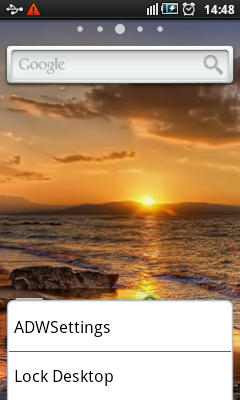
Lock desktop menu locks your desktop icons and settings from accidentally being modified. You should do this ideally when all your desktop settings are done. You can unlock using the same menu if you want to do any changes. Tap the ADWSettings menu to launch the ADW Settings screen.
ADW Settings
There are many choices here and you can explore those and try out in leisure. One of the interesting menus and in which we are interested now is "Themes Preferences".
Applying iPhone Theme To Android Phone : Tap this menu to proceed for trying out new iPhone theme for your Android phone.
Themes Preferences
Now tap "Select your theme" option to launch the dialog which displays the available themes you have on your phone. This include those which you have recently installed and default one from ADW Launcher.
ADW Launcher - Select your theme
The content of this dialog would differ depending on which themes you have installed on your Android phone. For iPhone like look & feel select the theme "ADWTheme_Blazing_IP" option. This is nothing but the "ADW IPhroid IPhone Free" theme which we installed earlier.
ADWTheme IPHROID Preview
You would need to scrolldown to see the preview of the theme and available buttons for actions to take. You can see the button like iPhone in the preview.
ADWTheme IPHROID Preview Scrolled
"Get themes!" button take you to the Android market store. You can start using this new iPhone like theme by tapping "Apply theme!" button.
iPhone look a like Theme for Android
Voila, you can see now your selected Android theme in action. You can see how shortcuts are looking like those on iPhone. Next you can go ahead and change the wallpaper with the one you like and start putting required widgets on your desktops.
Resizing Widgets With ADW Launcher Home Screen Replacement : There are many interesting features and settings in ADW Launcher. One of those which worth mentioning here is you can resize the widgets on Android home screen or desktop. Let me show you how.
Gadget Context Menu
When you long press any widget on your desktop like a clock shown in screenshot above, it displays the context menu with choices "Remove", "Edit", "Uninstall". Remove just takes away the widget from your desktop and Uninstall removes it from your mobile phone. If you tap Edit then it would allow you to resize the widget as shown in screenshot below.
Here is one youtube video which you may find useful to understand ADW.Launcher well
There are many other settings and features available with ADW Launcher and you can explore those further. There are many free and paid ADW themes available for Android which you can use with ADW.Launcher and you should try those. One suggestion which I would like to repeat is, download free ADW.Launcher app apk and free ADW theme apks from your trusted sources only.
I hope you liked this post and if you would like to read more about such wonderful best apps for Android mobile phones then subscribe to rss feed and bookmark this site to check back again.

 TuneIn Radio App : This is one of the popular and cool Android Radio apps. It has list of over 50000 free FM, AM, ham radio and online internet radio stations from different countries and in different languages. User interface of the app is simple and effective. Being a internet radio app what it needs is only internet connectivity. Unlike default Android radio, it does not need head phone to be plugged in to act as antenna. Another best part is you can listen to your favorite radio station from any part of the world. When you start the TuneIn radio it displays the categories of radio stations as shown in image below.